Guepard / Platform
Accessing Your Data with Computes
Learn how to connect to a compute and access your data in Guepard
A Compute in Guepard serves as the processing environment attached to a database, It provides the processing power and infrastructure to execute queries and manage data. This guide explains the concept of computes, how they interact with repositories, branches and snapshots and how you can connect your development tools to them.
What is a Compute?
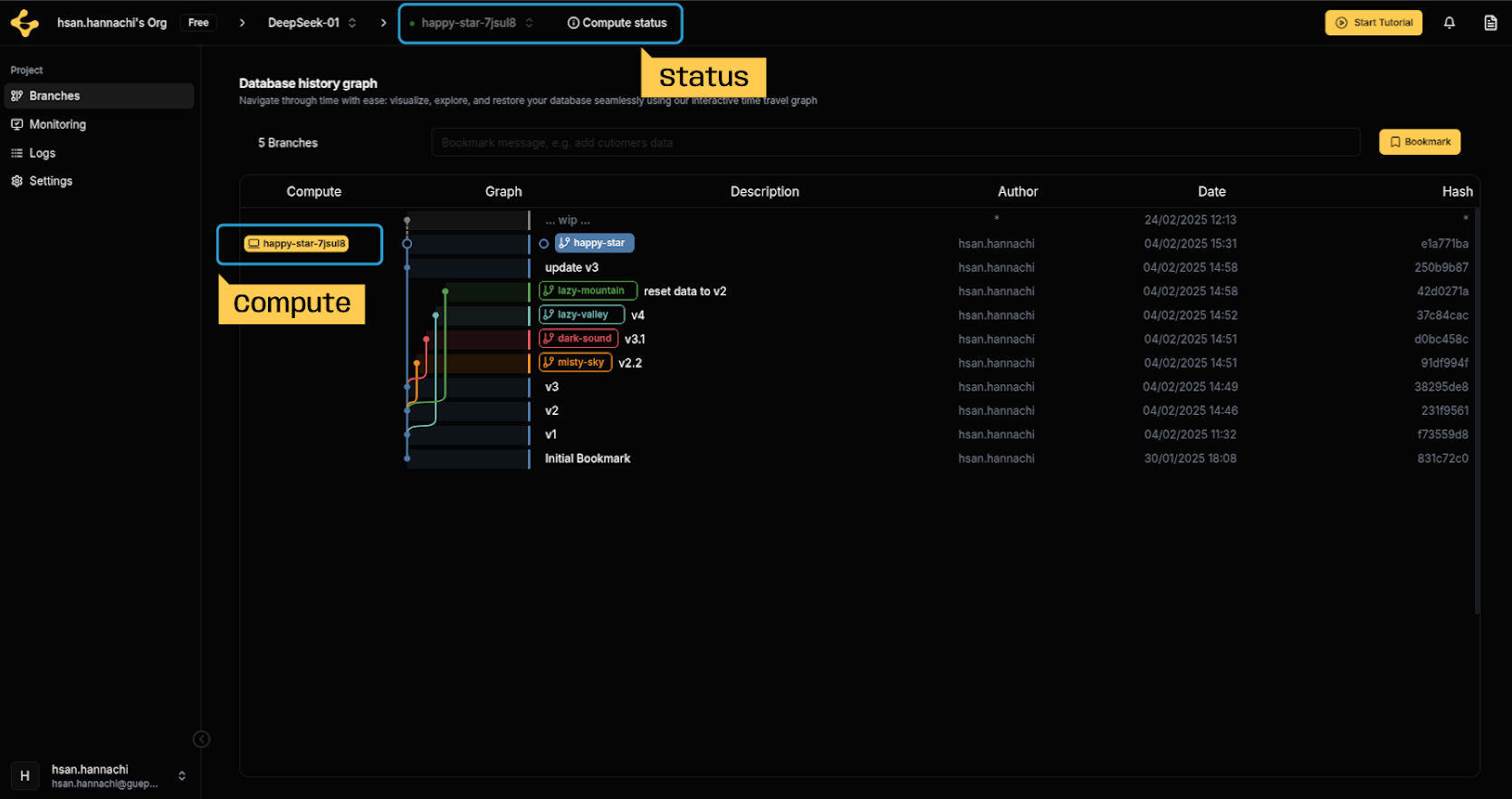
A compute is a dedicated environment assigned to a database. It remains consistent as you navigate through different snapshots and branches in your database.
- One Compute Per Database: Each database has a dedicated Compute created automatically during database setup, this ensures stability; Your compute's configuration and connection details remain unchanged regardless of the database's history.
- Immutable Environment: Compute settings are independent of database state changes, ensuring consistency.
- Linked to Branches/Snapshots: All actions (checkout, queries) occur within this Compute environment, it ensures flexibility;You can move between snapshots or branches without disrupting your processing environment.
- Scalable Compute: Adjust CPU/RAM tiers via database settings (e.g., from Small to Large).
- SSL-Enabled Connections: All compute connections are encrypted with SSL, ensuring secure communication between your tools and Guepard.
Creating a Compute
The Compute is initialized automatically when you create a database.
- Follow the database creation steps:
- Provide a database name, description, and cloud settings.
- Under Infrastructure Settings:
- Select a Compute Tier (e.g., Small: 4vCPU, 16GB RAM).
- Choose a Cloud Region (e.g., us-east-1).
- Click Deploy Database.
Guepard provisions the Compute with your selected resources. then it becomes the runtime environment for all branches and snapshots in the database.
Connecting to a Compute
Retrieve Connection Details:
- Open the Guepard Console.
- Navigate to your database and locate the associated compute.
- Access the compute's connection details; click on Compute Status Button in the top bar.
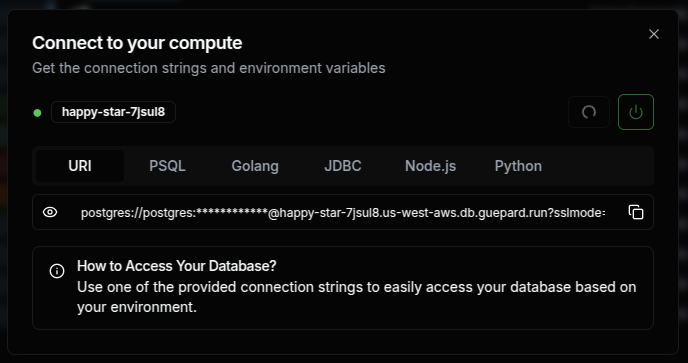
→ A pop-up appears with:
- Hostname (e.g., db.guepard.run)
- Port (5432)
- User Credentials (username/password)
- SSL certificate
Status Button:
- Running: Compute is active and ready for queries.
- Stopped: Compute is inactive; no connections allowed.
- Pending: Compute is starting up (takes 1–3 minutes).
Controls:
- Start Compute: Activates a stopped compute.
- Stop Compute: Halts the compute (terminates active connections).
Set Up Your Dev Tool:
- Open your development tool (e.g., pgAdmin, MySQL Workbench, or a custom application).
- Use the compute’s connection details to configure the tool.
- Ensure SSL is enabled to secure the connection.
Verify the Connection:
- Test the connection to confirm successful integration.
- Once connected, you can interact with your data through the compute.
Important Note
Stopping a Compute:
- Terminates all active connections.
- Data remains intact, but queries cannot be executed until restarted.
Key Benefits of Computes
- Seamless Data Access: Consistent connectivity regardless of database navigation.
- Security: Encrypted connections ensure data integrity and privacy.
- Flexibility: Compatible with a wide range of development tools and workflows.
- Efficiency: Eliminates the need to reconfigure environments when moving between database states.