Guepard / Features
Play with Time - Managing Your Database's History with Guepard
Learn how to use Guepard's Data Time Travel feature to manage your database's history and configurations.
Guepard's Data Time Travel feature provides a git-like interface for managing your database's history and configurations. The interface is centered around a graph table that visually represents bookmarks and branches, giving you complete control over your data evolution.
Interface Overview
The Data Time Travel interface provides Git-like version control for your database, visualized through an interactive graph.
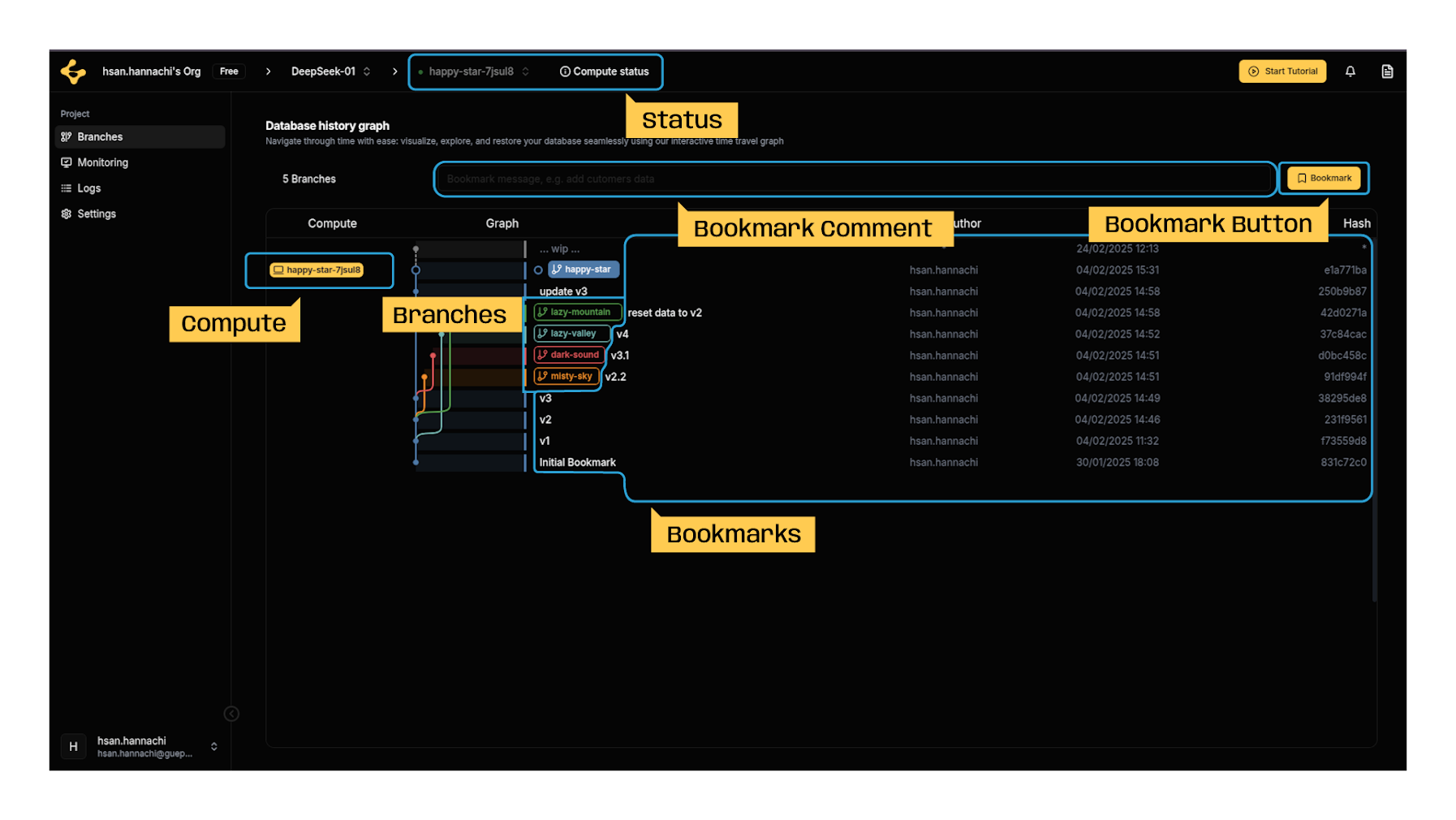
Timeline
Displays bookmarks and branches as interactive nodes.
- Nodes represent bookmarks.
- Badges indicate branches.
- Edges illustrate relationships between them.
Right-Click Actions
- On a Bookmark comment: Open a menu to create a branch or checkout the bookmark.
- On a Branch Badge: Open a menu to checkout the head of the branch.
Action Panel
- Perform top-level actions like creating bookmarks.
- Displays branch count.
Detailed View
In the detailed view, you can inspect metadata like:
- Timestamp
- Branch badge
- Bookmark name
- Associated compute environment
- Author
The interface functions similarly to a Git graph.
Features and Functionalities
Bookmark
Bookmarks allow you to capture the exact state of your database at any moment. By bookmarking a state, you can preserve its data and configuration for later reference or rollback. This is useful for saving stable versions before significant changes or testing new features.
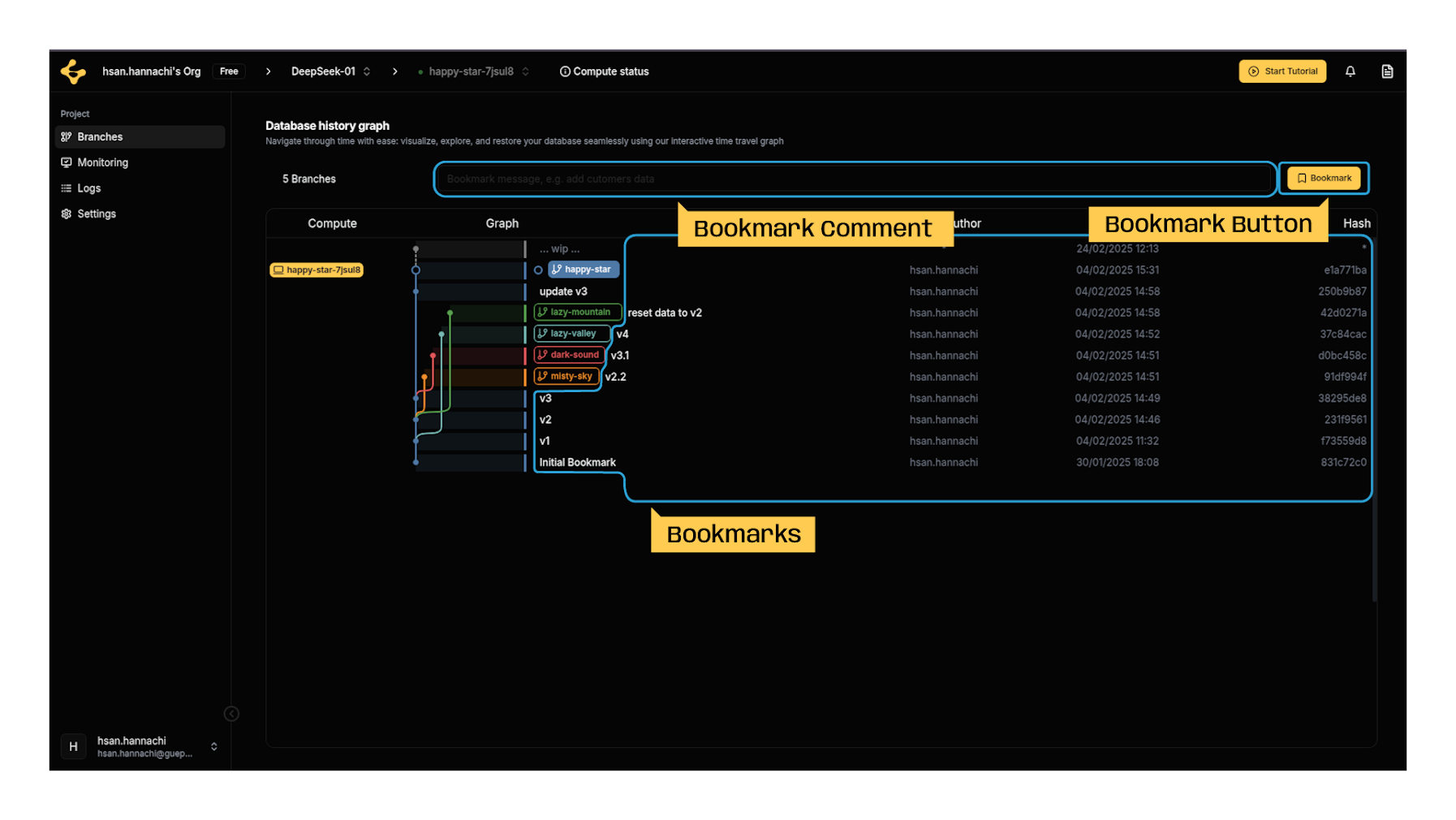
How to Create a Bookmark
- Add a Bookmark Comment: Describe the bookmark's purpose, this ensures easy identification in future workflows. (e.g., “Post-Q3 data cleanup”).
- Click Bookmark Button → The bookmark appears as a node in the current branch’s timeline.
Technical Notes
Inheritance: Bookmarks inherit the compute environment (e.g., AWS region, RAM) of their parent branch.
Metadata: Each bookmark includes a unique Hash (e.g., F5264048) for integrity verification.
Storage: Bookmarks are immutable.
Branch
Branches are independent copies of a bookmark, creating a branch allows you to diverge from an existing bookmark and work independently without affecting the primary data. This enables parallel development, experimentation, or testing in isolated environments.
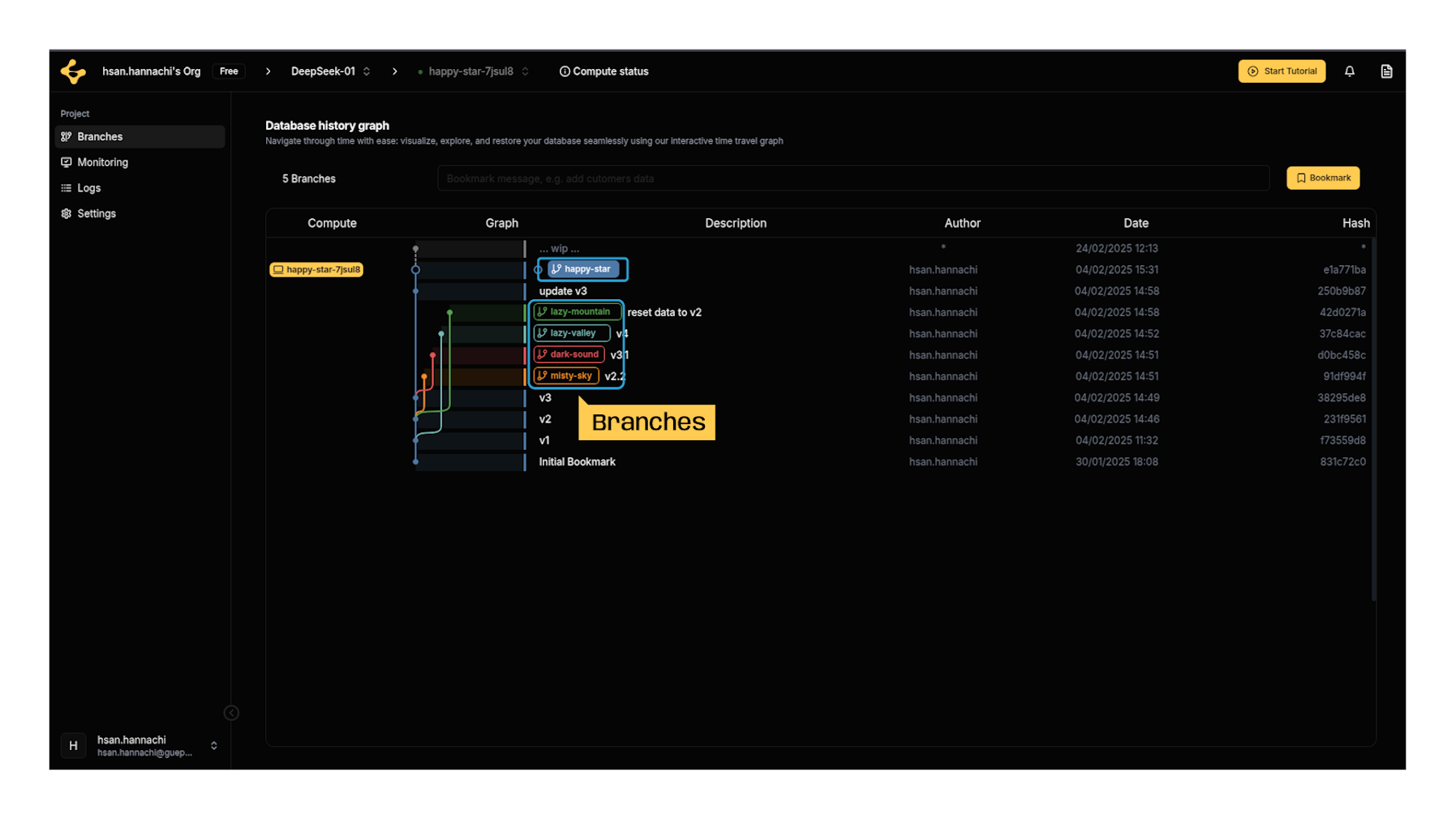
How to Create a Branch
From the graph table, select a bookmark,
- Right-click a bookmark row in the graph.
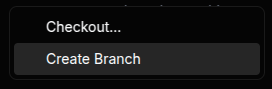
- Select Create Branch → A dialog opens.
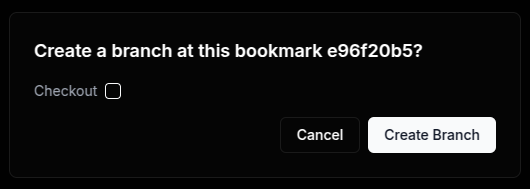
In the dialog: Checkout ? : Enable this checkbox to checkout newly created branch. The compute environment restarts with the branch's state.
Click Create Branch → New branch created from a bookmark's state.
Compute
Checkout
The checkout function lets you attach a specific database state to your compute environment. Guepard supports two checkout types:
Checkout a bookmark
Load a saved bookmark's state (historical data + configuration) into your compute environment.
- Right-click a bookmark node → Select Checkout.
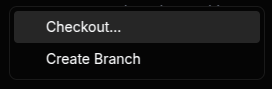
- In the dialog:
Discard Changes: Enable this checkbox to delete uncommitted data in your current environment.
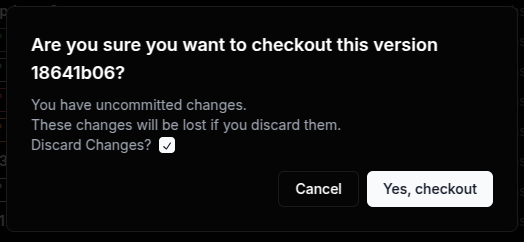
- Click Yes, checkout → The compute environment restarts with the bookmark's state.
Checkout a branch
Attach to the latest bookmark in a branch to work on its most recent state. Both methods allow you to immediately access the selected environment’s data, making them invaluable for:
- Debugging issues in historical or active workflows.
- Safely reverting to a previous state.
- Testing changes without disrupting other branches.
How to Checkout a Branch:
- Right-click a branch badge → Select Checkout....
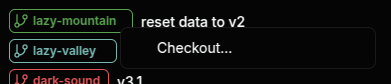
- → The environment syncs to the branch’s newest bookmark.
The Data Time Travel feature is a powerful tool to manage your database's history, experiment safely, and maintain stability across environments. With its intuitive graph-based interface, Guepard makes database version control as easy as managing code.
Take advantage of your data time travel functionality with Guepard
- Regularly bookmark critical states in your workflow to ensure you can always revert to a known good configuration.
- Use clear and consistent naming conventions for branches and bookmarks to improve team collaboration.
- Keep your main branch stable by isolating experimental changes in new branches.
- Before switching to a different bookmark, double-check its contents to avoid unintended conflicts or data loss.