Guepard / Features
Compute Performance Profiles
Tailored Compute Optimization
Guepard introduces Performance Profiles, a powerful way to optimize database environments based on their specific workloads. Every compute instance in Guepard can be assigned a performance profile that dynamically configures CPU, memory allocation, and fine-tuned database parameters to match operational needs.
Adaptive Workload Tuning
Not all workloads are created equal. Guepard allows users to define performance profiles to ensure compute resources are optimized for different database operations. These include:
- Query-Optimized – Prioritizes low-latency, high-throughput query execution for analytics and OLTP workloads.
- Indexing & Aggregation – Allocates resources for indexing-intensive operations to enhance read efficiency.
- Backup & Restore – Configured for high-speed data dumps and recovery operations with parallel execution.
- High Availability (HA) – Ensures resilience with redundancy, replication tuning, and failover readiness.
- Batch Processing – Optimized for ETL pipelines and large dataset transformations, maximizing throughput.
- Streaming & Event Processing – Designed for real-time ingestion and event-driven architectures.
Intelligent Profile Assignment
Guepard automatically suggests the best performance profile based on workload patterns, but users can override settings to match specific requirements. Profiles can be applied at compute creation or adjusted dynamically in response to workload shifts.
A Story of Precision and Agility
Imagine a fintech company handling high-frequency trading. During market hours, their Query-Optimized Profile ensures microsecond query execution, while after hours, the same database seamlessly switches to an Indexing & Aggregation Profile for data reorganization, without manual intervention. Meanwhile, a healthcare company leveraging AI workloads dynamically transitions from Batch Processing during training to Streaming & Event Processing for real-time patient monitoring.
Take Control of Performance
Guepard’s Performance Profiles put control in the hands of developers and operators, ensuring the right balance of speed, efficiency, and cost—tailored for every workload.
Visual Guide to Performance Profiles
To make it easier to get started with Performance Profiles in Guepard, here’s a quick visual walkthrough of the key steps:
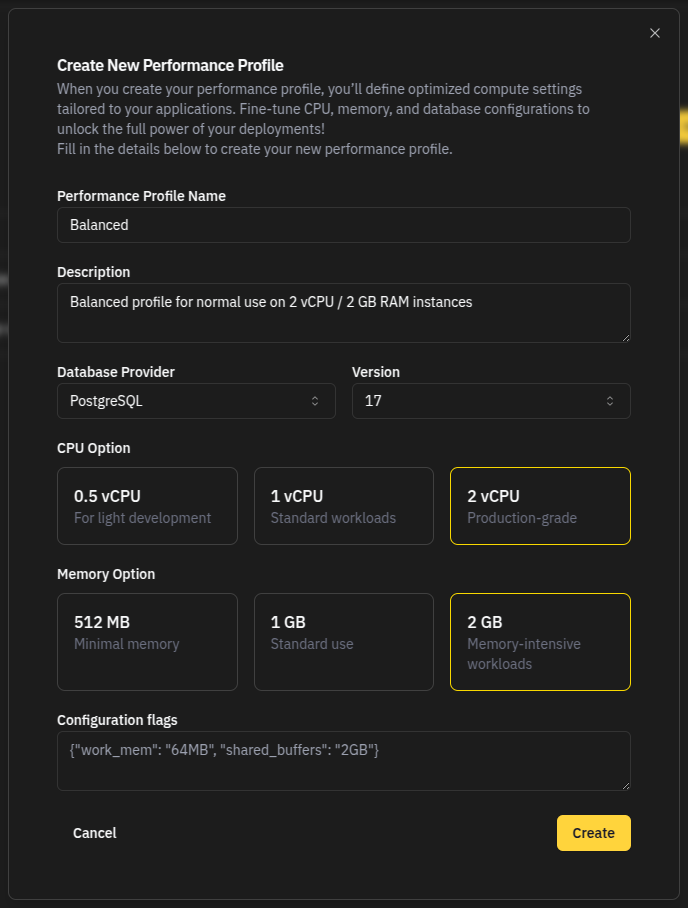
1. Creating a New Performance Profile
You can define a custom performance profile tailored to your workload’s needs by selecting CPU, memory, and configuration flags.
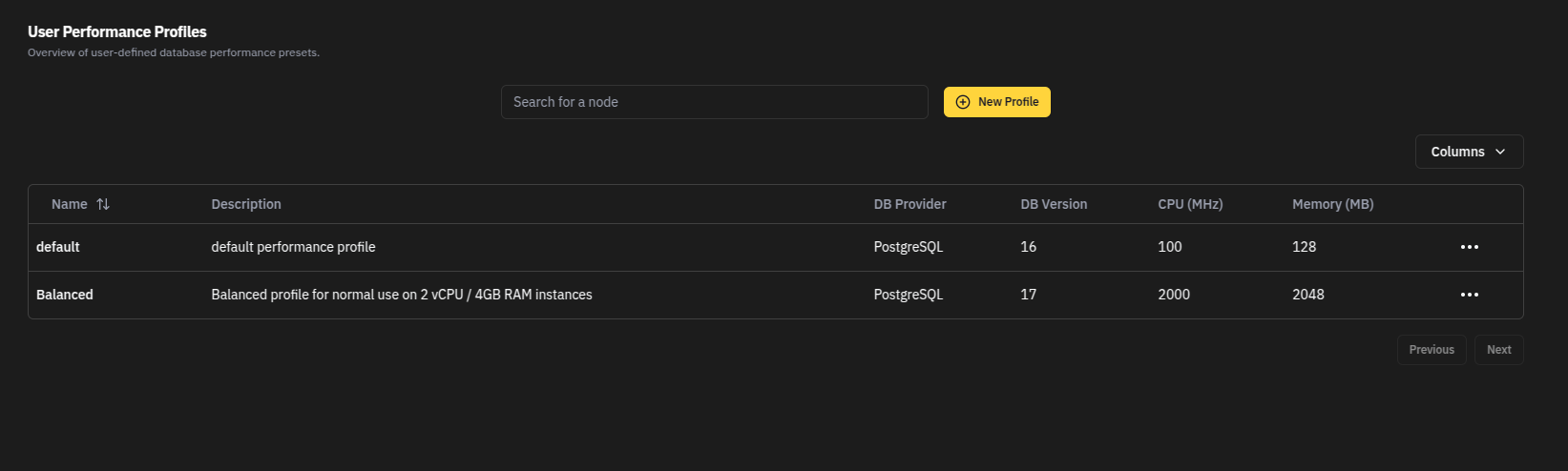
2. Listing Your Profiles
All created profiles are easily accessible in the Performance Profiles section. This lets you review configurations at a glance and manage them as needed.
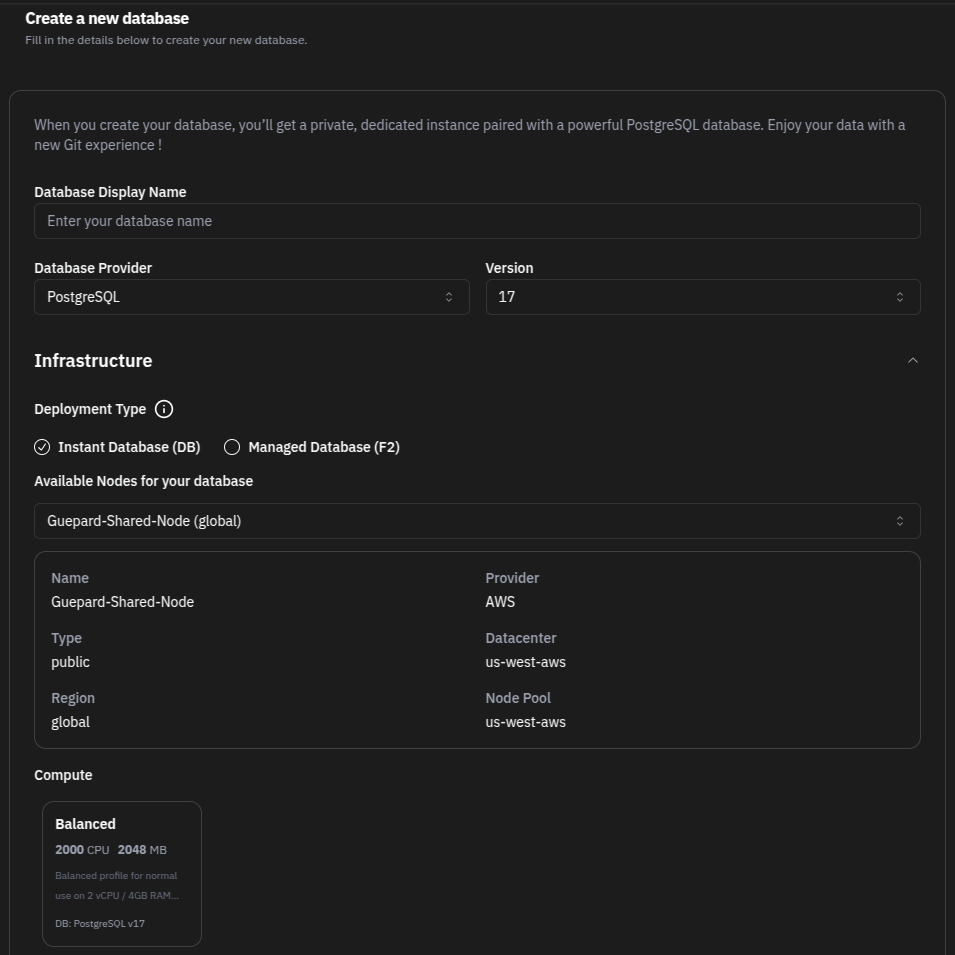
3. Applying a Profile to a New Database
When creating a new database, you can apply your selected performance profile to instantly optimize compute settings based on your profile.
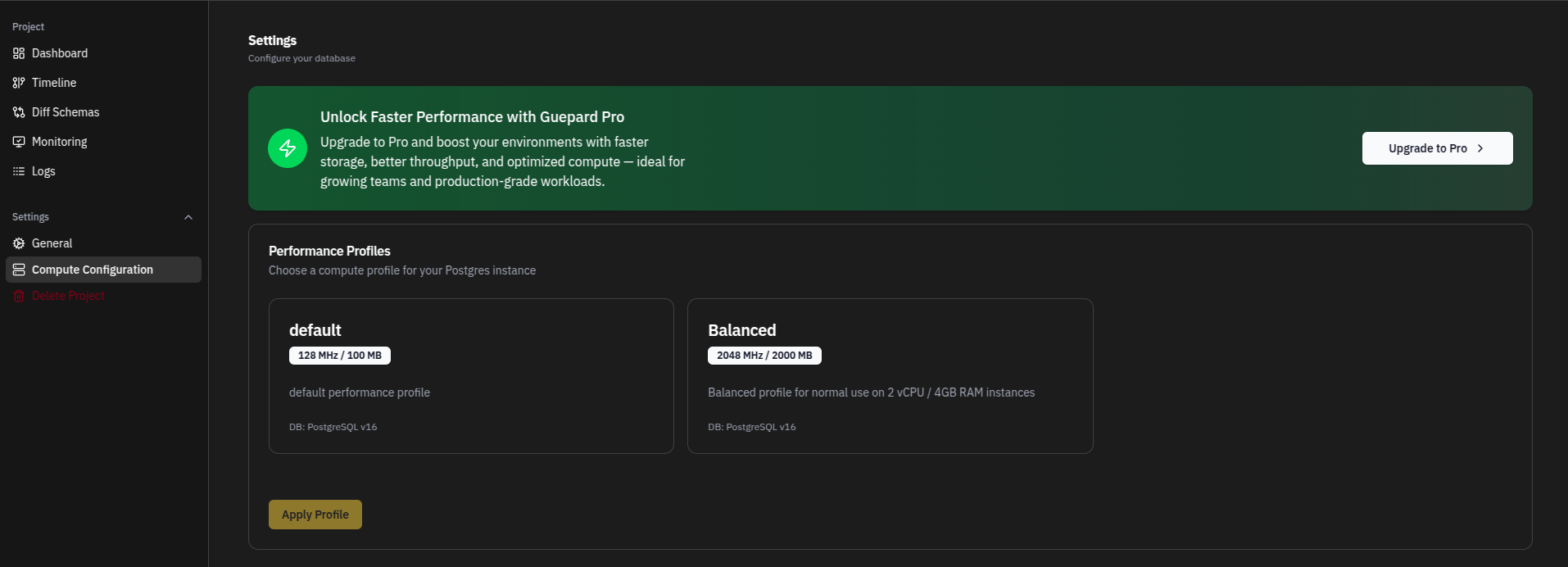
4. Applying a Profile to an Existing Database
Performance Profiles aren't just for new databases—they can also be applied to existing instances to optimize performance dynamically as your needs evolve.
To apply a Performance Profile to an existing database:
- Navigate to your database – From the sidebar, go to Databases and select the instance you want to update.
- Access Settings – In the database dashboard, open the Settings tab.
- Open Compute Configuration – Inside the settings view, locate and select the Compute Configuration section.
- Select a Profile – Choose the most suitable performance profile from the list of available options.
- Apply Changes – Save the configuration to instantly apply the selected profile to your database.
This allows your infrastructure to stay responsive and cost-effective, no matter how your workloads evolve.